Importing data from Autodesk Construction Cloud is easy.
Follow these simple steps to connect your Autodesk Construction Cloud account to Morta.
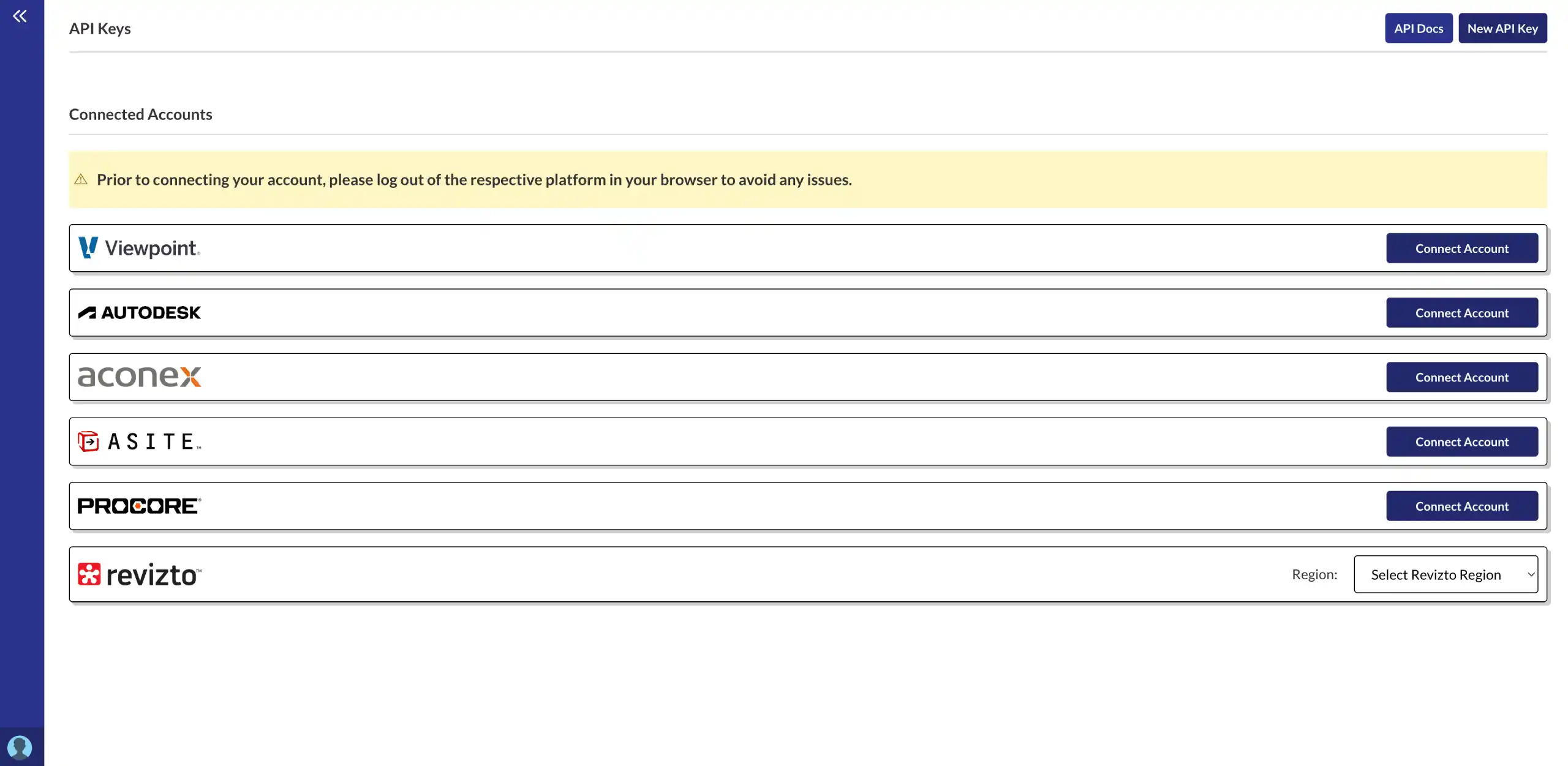
Step 1: Connect your account.
Click on your profile image in the bottom left hand corner of Morta. Then click integrations. Then connect your account from the right hand side.
- Secure OAuth connection
- Disconnect at any time
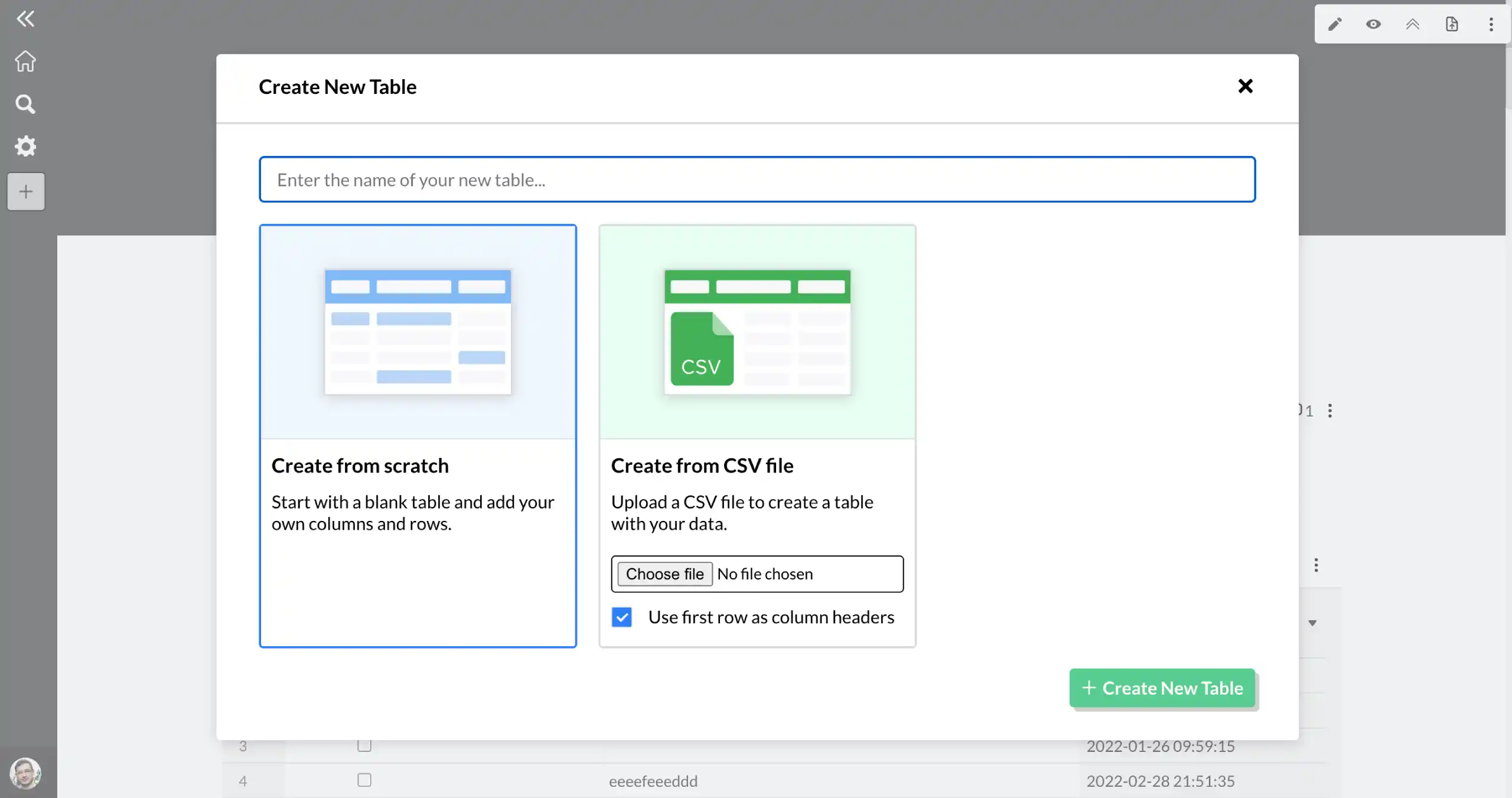
Step 2: Navigate to a Morta table.
Open up one of your hubs. Then create a new table or open an existing one.
- Single source of truth
- No more manual entry
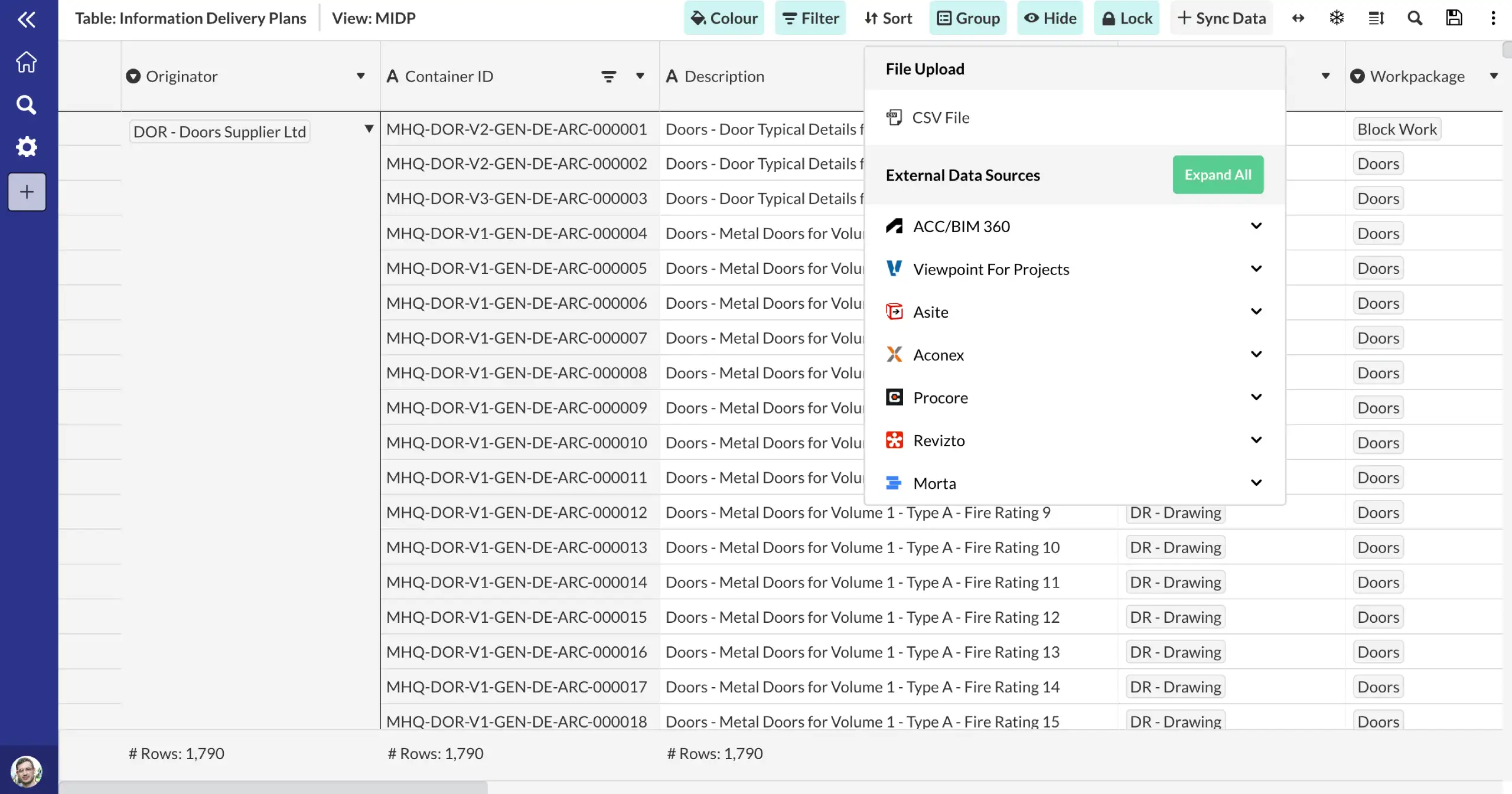
Step 3: Import your data.
Click import data from the top right hand corner of the table. Select the data you want to import and click import.
- One click data import
- Automatic refresh every day
What data does Morta sync from Autodesk Construction Cloud?
Morta automatically pulls the following fields into your table.
Checklists
Documents
Frequently asked questions.
Common questions about this template and how it works.
How do I connect my ACC account to Morta?
Autodesk Construction Cloud / BIM 360 Admins can find the Morta ACC / BIM 360 Integration in Account Administration under the 'Apps' tab. Select to add to your ACC / BIM 360 Account. Your Morta Integration is now active in ACC / BIM 360.
Why can I not see my ACC hub?
You need to make sure you have added Morta to your ACC / BIM 360 account. If you have done this and still can't see your hub, please contact Morta support.
How often does Morta sync data from ACC?
Data can be synced on an on-demand basis or automatically on a daily basis at 12:00 AM UK Time. To activate the daily sync, users need to be on an Advanced Subscription. The manual sync and the sync frequency can be changed within the sync menu.
What if the installed plugin does not fetch all my ACC hubs?
In some cases, you may need to create a custom integration. Uninstall the existing Morta plugin from your ACC Account Admin area, create a custom integration using Morta's Autodesk Client ID (eh8mngkH6G0xiGoqXAQMx5NF8TtZNY8o), then reconnect your ACC account in Morta's Integrations page.
Get started